A final inspection status check asks whether the official record for one exact permit shows the inspection event that closes that permitted scope. Start with the issuing authority’s permit or inspection system and the full permit number. Use the address and parcel to confirm the property, not as a substitute for matching the permit.
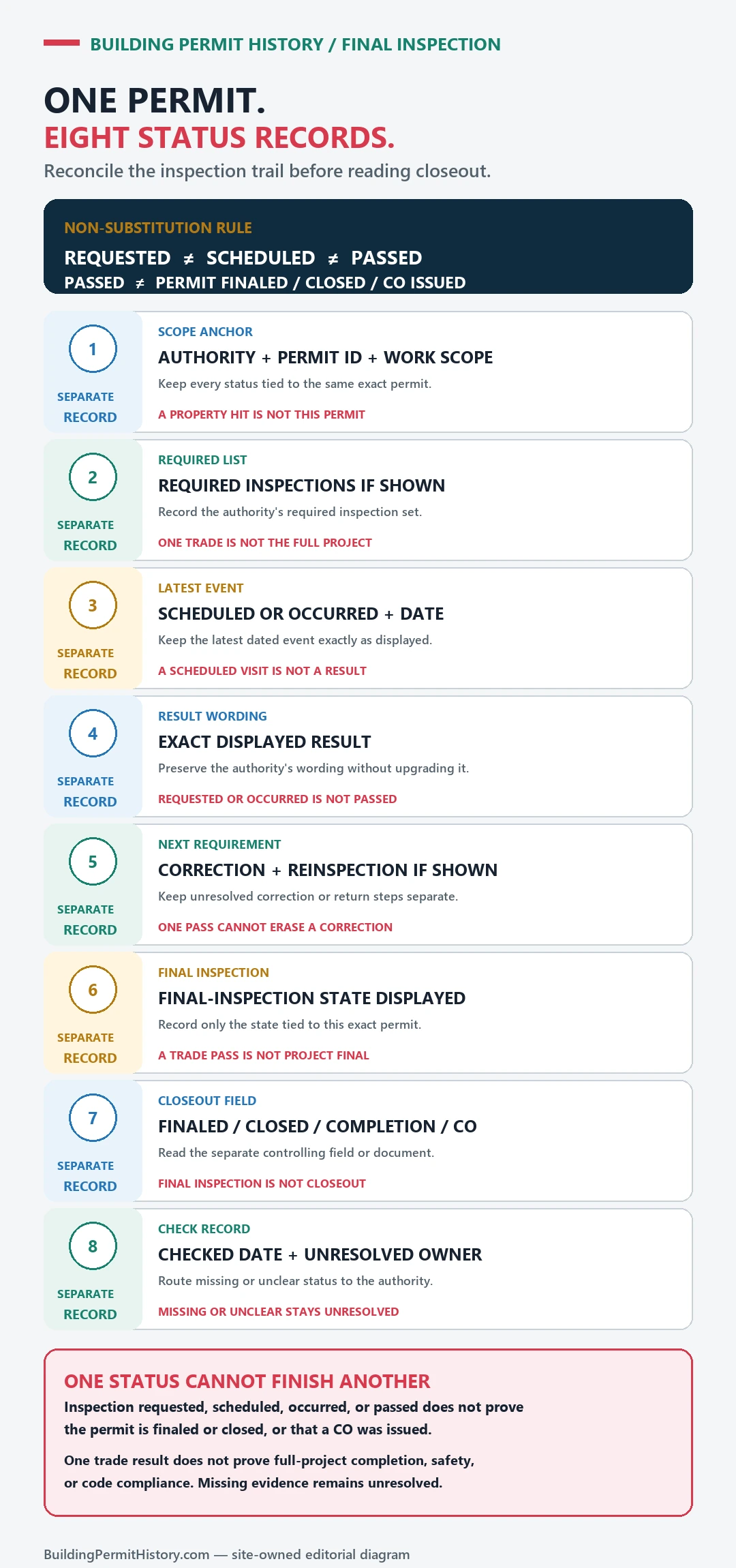
An issued permit authorizes work, and the final inspection is a later event. A passed rough or partial inspection covers only that stage, and a final label records the result on that date rather than present condition or workmanship. Copy the agency’s inspection type, result, and date exactly, then look for later corrections or reinspections.
Use the issuing authority’s inspection record
If the responsible office is unknown, the USA.gov local government directory can help locate candidate governments. Confirm the actual permit authority and its inspection-record instructions on the agency’s own site before interpreting a result.
Gather the address, parcel number and permit number
For the final-inspection check, have the street address, parcel number, owner or applicant name, permit number, and an approximate work date ready.
- Exact street address
- Parcel or assessor number
- Permit or application number
- Issuing city or county
Open the permit, inspection, and completion history
- Confirm the property, full permit number, work description, and issuing authority before reading inspection entries.
- Open the inspection history for that exact permit and identify the inspection type that would close the permitted scope, as distinct from an earlier rough inspection.
- Copy the agency’s result label and date exactly, then check for a later correction, reinspection, cancellation, or final event.
- Check related building and trade permits because electrical, plumbing, mechanical, fire, or occupancy closeout may be recorded separately.
- If the expected final entry is absent, check document and notice areas, the authority’s legacy system, and then request the named inspection record using the full permit number.
Read issued, finaled, expired, and open as separate statuses
To complete the final-inspection check, the result is strongest when the permit, inspection events, and final status refer to the same scope of work and property.
| Evidence found | Narrow conclusion |
|---|---|
| Permit issued | The authority recorded issuance; this is not a final inspection result. |
| Rough or partial inspection passed | That named stage passed; later required stages remain separate. |
| Final inspection result | Copy the exact type, result, and date, then check for later corrections or reinspections. |
| No inspection entry | The searched view is incomplete or empty; check documents, related permits, older systems, and the records route. |
A permit entry alone leaves open whether the work passed final inspection, matches the building today, or complied with rules owned by another department.
Permit issued, but no inspections appear: check the missing record layer
An issued permit with an empty inspection view leaves open whether an inspection occurred, failed, or was omitted. First confirm that you opened the issued permit rather than the application, then check related building and trade permits, document tabs, inspection notices, legacy systems, and the official records-request route. Carry the full permit number through every step.
Inspection information is organized differently across official systems. San Jose’s Help for SJPermits & SJePlans page links to the Find Inspection Records guide, which tells users to select the property, open “View Permit/File,” choose the correct permit, open Details, and then check Document for inspection notices. An inspection can therefore exist as a document even when a searcher expects a simple inspection-results table.
Seattle SDCI’s Research a Project page routes readers among property, project, permit, inspection, document, and historical sources. Houston’s official Permits and Inspections overview similarly separates permit search, plan status, inspection history, and the limited Sold Permit Search. In both cities, a complete check means opening several screens.
Use the symptom to choose the next official check
| What you see | Possible record-layer explanation | Next official check | What you cannot conclude |
|---|---|---|---|
| Permit says issued; inspection area is empty | Inspection notice may be a document, a separate module, or not yet posted | Open permit details and documents; use the authority’s inspection instructions | No inspection ever occurred |
| Building permit is visible; electrical, plumbing, or mechanical inspections are absent | Trade inspections may belong to separate child permits | Find related trade permit numbers and inspect each history | Building final covers every trade |
| Current portal finds the permit but not old events | Historical inspections may be in a legacy system or archive | Use the official old-record or records-request route | The work had no inspection |
| Address result shows several similar permits | The wrong application, revision, or permit may be open | Match full number, scope, dates, and parent/child relationships | The nearest record belongs to the project |
| One approved inspection appears, but no final | More stages may be required or closeout may use another record | Read the issued permit, required inspection list, and final/occupancy route | The project is complete |
| Portal is unavailable or the result is delayed | Temporary outage, processing lag, or access restriction | Record the error and contact the official unit with the permit number | The underlying record does not exist |
The explanations are possibilities, not findings. Use the issuing authority’s response to determine which one applies.
Confirm the property, permit, and scope again
Start with the legal address and parcel. Then compare the full permit number, permit type, work description, issue date, applicant or contractor where relevant, and related project number. An application and an issued permit can share a project context while carrying different records. A revision can also create a later version whose inspections are attached elsewhere.
If the portal found the address but missed the expected permit, try the stable identifiers described in the Permit Number Lookup Guide. If the property itself is missing, use Address Not Found in a Permit System before declaring a records gap.
Read the scope carefully. Separately permitted electrical, plumbing, mechanical, fire, elevator, solar, or utility work can carry its own inspections, recorded outside the general building permit. The guide to Plumbing, Electrical, and Mechanical Permit Records explains how to assemble that permit family.
Look in document and notice areas
Go past the status summary. Open every official section available for the correct permit: inspections, documents, attachments, notices, related records, revisions, conditions, and correspondence. Save the exact document title, date, permit number, inspection type, and result.
An “inspection notice” can contain a result or correction that appears nowhere else. A final approval can also appear under an occupancy, completion, or related parent record. Use the agency’s terminology exactly, rather than rewriting a favorable result as “fully approved.”
If the site exposes private or sensitive information, keep it out of anything you share. The research goal is the project evidence chain.
Search older systems and request the named record
When the permit predates the public portal’s stated coverage, follow the authority’s official historical instructions. Prepare the current and former address, parcel, full permit number, approximate inspection date, inspection discipline, contractor or applicant when relevant, and the exact document needed.
A targeted request might ask for “the inspection history and final inspection record for permit [full official number]” rather than every record for the property. If the agency reports that no responsive record was located, preserve that wording and the search scope: it records the result of that search, and the inspection question stays open.
The broader Building Permit Data Limitations guide explains retention, migration, and field-coverage gaps.
Keep an absent record separate from a failed inspection
This diagnostic ends when an inspection result is located or the official records route is exhausted and the remaining gap is documented. If the result says failed, rejected, partial, corrections required, or another nonfinal outcome, the question changes. The next task is to connect the objection or correction, responsible permit, corrective work, reinspection, and later result.
Keep an absent-entry explanation away from a documented failure, and read each failed result for its own inspection only. Those are separate records problems.
State the narrow conclusion
After the search, report only what the evidence supports:
- which official systems and record areas were checked;
- the property and permit identifiers used;
- which inspection or final records were located;
- which related permits were checked;
- what the authority said about an unavailable record;
- what remains unknown.
Each record proves one step: an issued permit shows authorization, an inspection approval shows that stage passed, and a final result shows the scope closed on that date. An empty portal view is a reason to check another record layer.
The reliable approach is to find the correct record layer, preserve the complete identifiers, and stop the conclusion where the official evidence stops.
If the permit history is incomplete
For an unresolved final inspection, provide the issuing office with the property, full permit number, work year, inspection discipline or type, approximate inspection date, and the exact portal sections or older systems already checked. Ask for the inspection history and final inspection record for that permit.
Where inspection results live in a different system from the permit, as in Little Rock’s CDR lookup and WebPermits inspection route, carry the permit number from one to the other.
USA.gov, NYC DOB, San José, Seattle SDCI and Houston permit pages checked October 20, 2026.