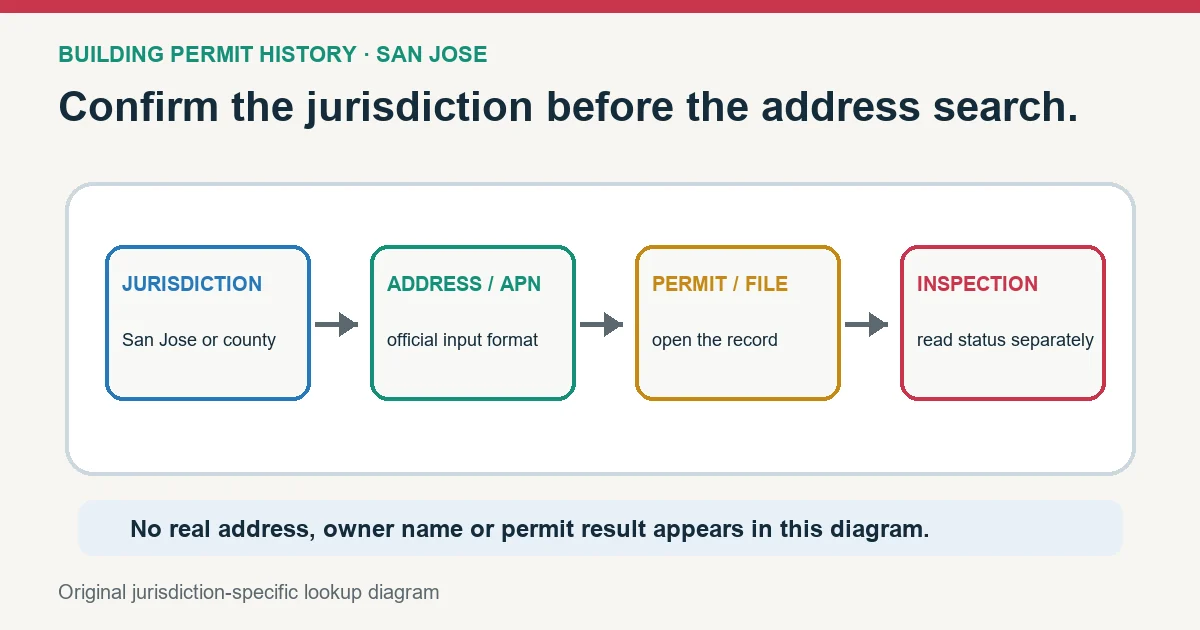
A San Jose building permit search starts with a jurisdiction check inside SJPermits, then an identifier search that follows the City’s exact format. In the Public Property Search, use house number plus street name without direction or road type, or enter the APN with no spaces or dashes. Select the property before opening View Permit/File.
At a glance
- Address search: Yes. SJPermits searches by address, APN, permit number or tract.
- Online records start: Not confirmed.
- Older records: Email the PBCE document duplication form: research $45 per half hour, prepaid. Most requests take 7–10 business days; plan copies can take 30–40 days.
- Checked: October 21, 2026. Compare 15 other jurisdictions in our permit lookup by address comparison.
Building Permit History tool · for buyers and owners
Permit status decoder
Copy the permit rows from the city or county portal and paste them below, one permit per line. The decoder explains each status, flags the ones to ask about, and lists what to request before you rely on the record.
Let the Incorporated field decide City or County
| Property result | Meaning | Next permit authority |
|---|---|---|
| Incorporated: Yes / City jurisdiction shown | Property is routed to City of San Jose permitting | SJPermits public search |
| Incorporated: No / other jurisdiction shown | Do not interpret a City no-result as the permit history | Santa Clara County permit route or the named municipality |
| Address and APN return different properties | Identity unresolved | Compare assessor/property data and ask the Permit Center |
The City’s SJPermits help page explains that anyone can search permit history and that the property description’s Incorporated field is used to distinguish City jurisdiction. It also separates public SJPermits functions from SJePlans, which is for authorized permit applicants. A public user should not treat lack of SJePlans access as lack of a permit.
Format the search before changing the source
| Search key | Exact format | Best use |
|---|---|---|
| Address | House/building number + street name only; omit N/S/E/W and Ave/Rd/St | Find a known City property |
| Partial address | Partial street plus % wildcard when needed | Recover spelling or compound-street matches |
| APN | Digits only, no spaces or dashes | Unaddressed parcel, 0-address, or stronger identity |
| Permit number | Full year and sequence, with or without allowed punctuation | Open one known permit directly |
| Project reference | Exact reference such as the displayed project format | Find a planning/project file |
| Tract | Numbers only | Locate records organized by tract |
If 200 E Santa Clara St fails, do not paste the whole phrase into the street field. Enter the house number separately and the street name without direction or suffix. If the address has no usable number or returns a 0-address, repeat with the APN. Preserve leading zeros in the source record even though the public APN input removes dashes and spaces.
Move from property to permit without mixing divisions
- Select the exact property and confirm its address, APN, and incorporated-jurisdiction result.
- Choose View Permit/File and list Building, Fire, Planning, and Public Works records separately.
- Open the record that matches the permit number, project type, scope, and date.
- Copy the division, permit/file number, public Status, description, process details, and documents.
- Open inspection notices or other documents from the exact permit rather than from the property list alone.
Do not confuse public Permit Status with applicant Application Status
San Jose’s permit-status guide says anyone can see the permit Status column, while Application Status is found on the signed-in applicant’s My Services page. Application labels such as In-Progress or Submitted describe the online submission state. Public permit status depends on the reviewing division and process. Report the field name with the value.
| Displayed state | Bounded interpretation | Next check |
|---|---|---|
| Building — Intake | Submission process started; submittal may not be complete | Missing application step or payment |
| Building — Technical Review | Permit is under review | Open process tasks, assigned staff, resubmittals, and target dates |
| Building — Under Inspection | Permit issued; inspections are needed or in progress | Inspection records and every required final |
| Building — Finaled | City says construction is complete and final inspection occurred for that permit scope | Other permits, later work, and occupancy scope |
| Planning/Fire/Public Works label | Use that division’s published definition | Do not borrow the Building definition for the same word |
Use Process Details to locate the actual delay
Inside the selected permit, record Process Name, Process Status, Date Started, Date Ended, Target End Date, Assigned User, and Process Results when available. A permit-level Technical Review label may contain several discipline tasks. One closed task does not mean every task is closed; an open unassigned process can be queued for later work.
| Process observation | What to record | Question for the City |
|---|---|---|
| Open with target date | Process, start, target, assigned user | Is applicant action or staff review pending? |
| Ended but permit still in review | Ended task plus every other open process | Which dependency still blocks issuance? |
| Resubmittal in results | Resubmittal date and review round | Which correction remains open? |
| No assignee | Open status and checked date | Is assignment expected later or is information missing? |
Retrieve inspection evidence from the exact permit
The City’s inspection-record instructions direct users to select the property, open View Permit/File, choose the permit, click Details, then Documents to find Inspection Notices. Save the permit number, inspection type, date, result or notice, and any correction. An inspection document for one permit does not close a separate building or trade permit.
Recover when SJPermits returns the wrong thing
- No address match: remove direction and street type, use a partial street or wildcard, then search the APN digits only.
- 0-address or unaddressed parcel: make APN the primary identity and compare the selected polygon/property description.
- Other jurisdiction appears: move to the County or named city; do not keep searching the City portal for a County permit.
- Property list is long: filter by division, work description, permit number, and date before opening status.
- Inspection notice is missing: verify the exact permit and Documents area, then ask which inspection system owns that record.
- Public and applicant views differ: label the public Status and private Application Status separately with checked dates.
Create a San Jose permit handoff card
| Card field | Value |
|---|---|
| Identity | Address input, APN input, selected property, Incorporated result |
| Owner record | Division, permit/file number, description, public status |
| Process | Open task, start/target/end dates, assigned contact, result |
| Inspection | Type, date, result/notice, correction, remaining final |
| Next action | Applicant item, staff review, fee, document, inspection, or jurisdiction transfer |
Use Final Inspection Status Check for the closeout chain, City vs County Permit Records for an Incorporated: No result, and Address Not Found in a Permit System for identifier recovery. The San Jose search result does not prove that every structure or alteration is permitted, that all related permits are final, or that a different parcel or scope is covered.